Running simulator on M1 powered computer
There is no preconfigured VM image for ARM64 architecture of M1 chip (Apple Silicon), so the only possibility is to install the simulation software manually.
The recommended virtual machine hypervisor is UTM app. Also it's possible to use VMware Fusion Public Tech Preview with M1 support.
Simulation installation with UTM
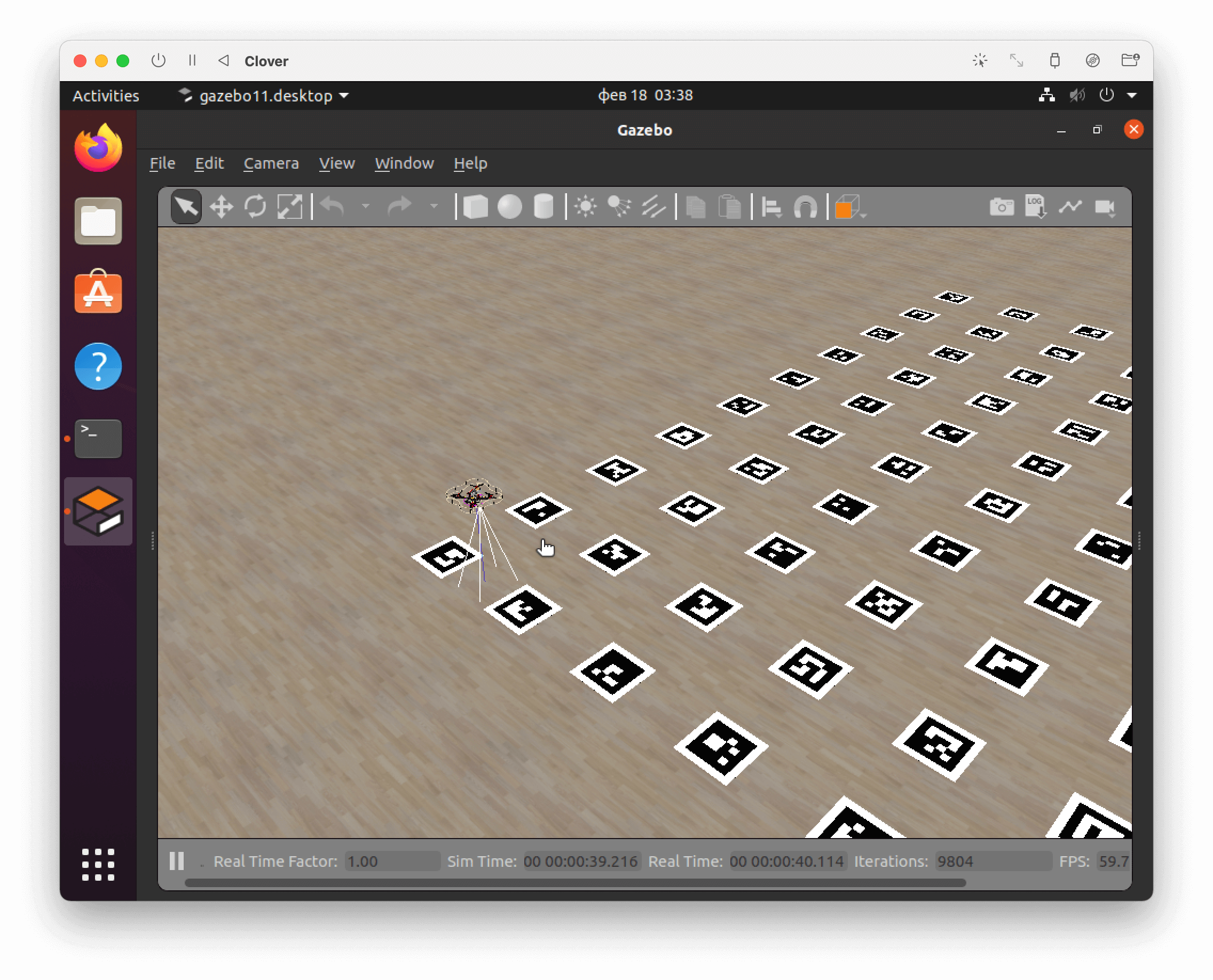
- Download UTM App from the official site mac.getutm.app and install it.
- Download Ubuntu Linux 20.04 installation iso-file for ARM64 architecture using the link: https://clovervm.ams3.digitaloceanspaces.com/focal-desktop-arm64.iso.
Create a new virtual machine in UTM, using the following settings:
- Type: Virtualize.
- Operating System: Linux.
- Boot ISO Image: choose downloaded file
focal-desktop-arm64.iso. - Memory: 4096 MB or more.
- CPU Cores: 4 or more.
- Turn on Enable hardware OpenGL acceleration option.
- Storage: 20 GB or more.
Run the created virtual machine.
Choose Install Ubuntu in the menu and install it using the installation master.
- Recommended apps: Minimal installation.
- Installation type: Erase disk and install Ubuntu.
Input your account parameters, for example:
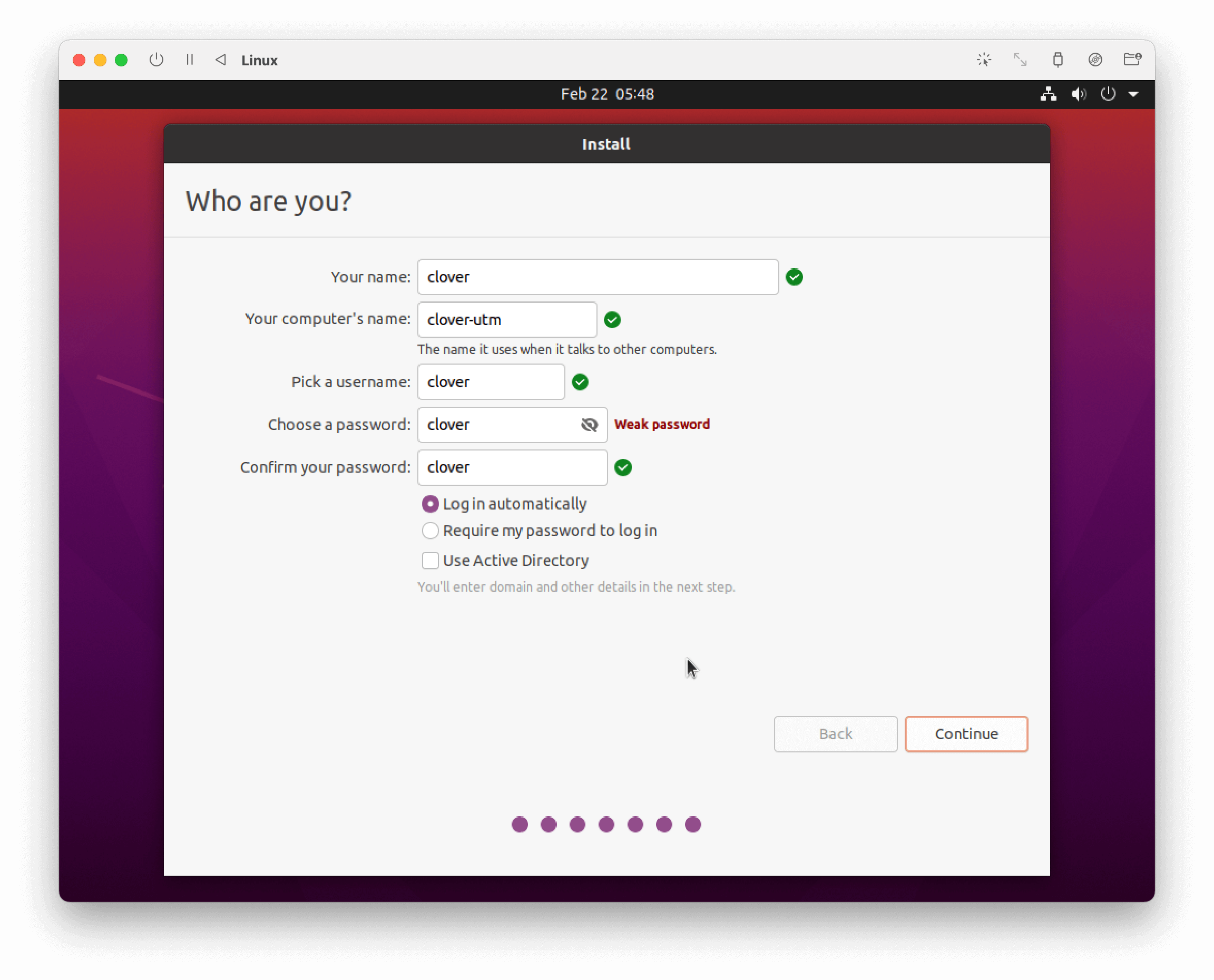
Finish the installation and run the system (you need to eject the virtual CD or choose Boot from next volume in the boot menu).
- Install the simulation